I help brands get discovered, own their story, and measure impact in AI Search.
When AI answers shape what people find, your brand should be the one telling the story.
Including
Perplexity

ChatGPT

Claude

Gemini

Grok

Microsoft Copilot

Meta AI

DeepSeek

Google AI Overviews

Google AI Mode

Let's talk — no commitment
Share your challenge. We'll get on a call and see if we're a fit.
About Me
I'm Mihir Naik — Senior Product Manager (AI) at seoClarity, where I lead product and strategy for Clarity ArcAI, our AI Search Visibility Monitoring & Optimization platform. ArcAI is built for enterprise SEO teams that need continuous visibility into brand presence across generative and AI-augmented search — including ChatGPT, Perplexity, Google AI Overviews, and comparable surfaces — so they can benchmark performance, prioritize technical and content fixes, and run AI-mediated discovery with the same accountability as any revenue-critical channel: clear goals, owners, and measurement rather than guesswork. Born in Surat, India; based in Toronto, Ontario, with my wife; in SEO since 2011.
My operating background is 14 years of SEO at enterprise scale across retail, multi-brand programs, and high-traffic marketplaces — contexts where site architecture, crawl and rendering constraints, template governance, and ranking volatility directly affect traffic and revenue. I also run consulting engagements for B2B SaaS, ecommerce, DTC, and local businesses, plus adjacent models, with emphasis on technical SEO, information architecture, AI-search readiness, program governance, and roadmaps tied to analytics and business outcomes.
Where I share
LinkedIn 18k+ — Enterprise SEO, strategy, and what I'm learning at scale.
X 2.8k+ — Building in public, coding, and side projects.
Newsletter 2k+ — Enterprise SEO, AI Search, and workflow automation. (Subscribe below.)
YouTube ~1k — Scripts, GSC analysis, and automation tutorials.
GitHub — Code, side projects, and open-source SEO tools.
Learning & side projects
When I'm not on ArcAI, I'm learning Python and shipping side projects — including a SaaS (ActionableSEO), a productized service, and open-source SEO automation. Stack: Flask, FastAPI, MongoDB, GenAI. Always breaking things and building in public.
Want to discuss your AI search or SEO strategy? Get in touch →
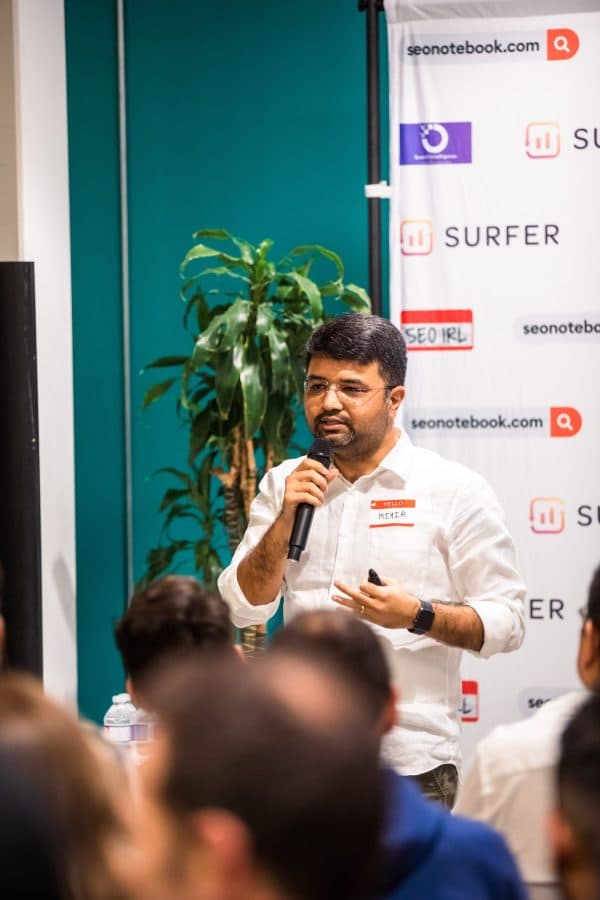
Experience
Enterprise SEO across retail, classifieds, and financial services.


Resources
Guides, frameworks & video
Since I read Share Your Work, I have been posting regularly on LinkedIn about the work I do, and insights I have from my day to day. Things started to take shape and now I am housing them all under here.
How AI search differs from traditional search
How AI search changes the game for users, SEOs, content teams, and leadership—visibility, metrics, and strategy by stakeholder.
Read guide →AI Search Optimization Framework
A methodology for SEO teams: visibility and narrative control in AI search answers—prompts, topics, funnel stages, a 2×2 model, and playbooks.
Read guide →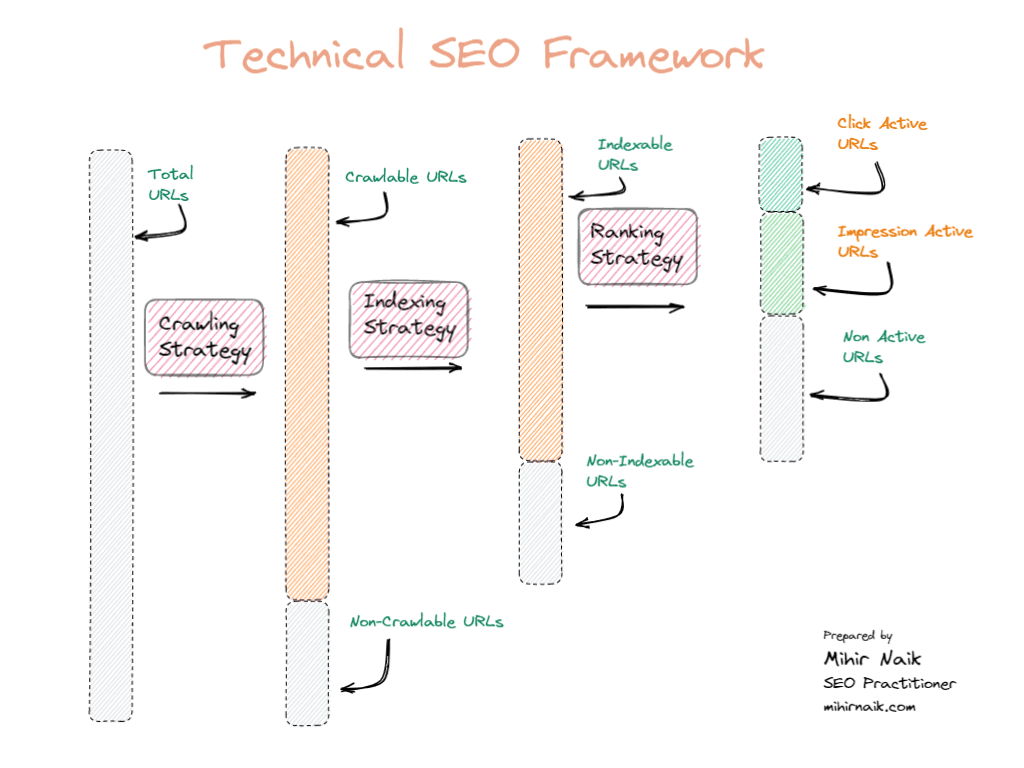
My SEO Frameworks
Visualizing complex SEO processes and concepts in a simplified way so important stakeholders could easily grasp what SEOs do.
Explore SEO Frameworks →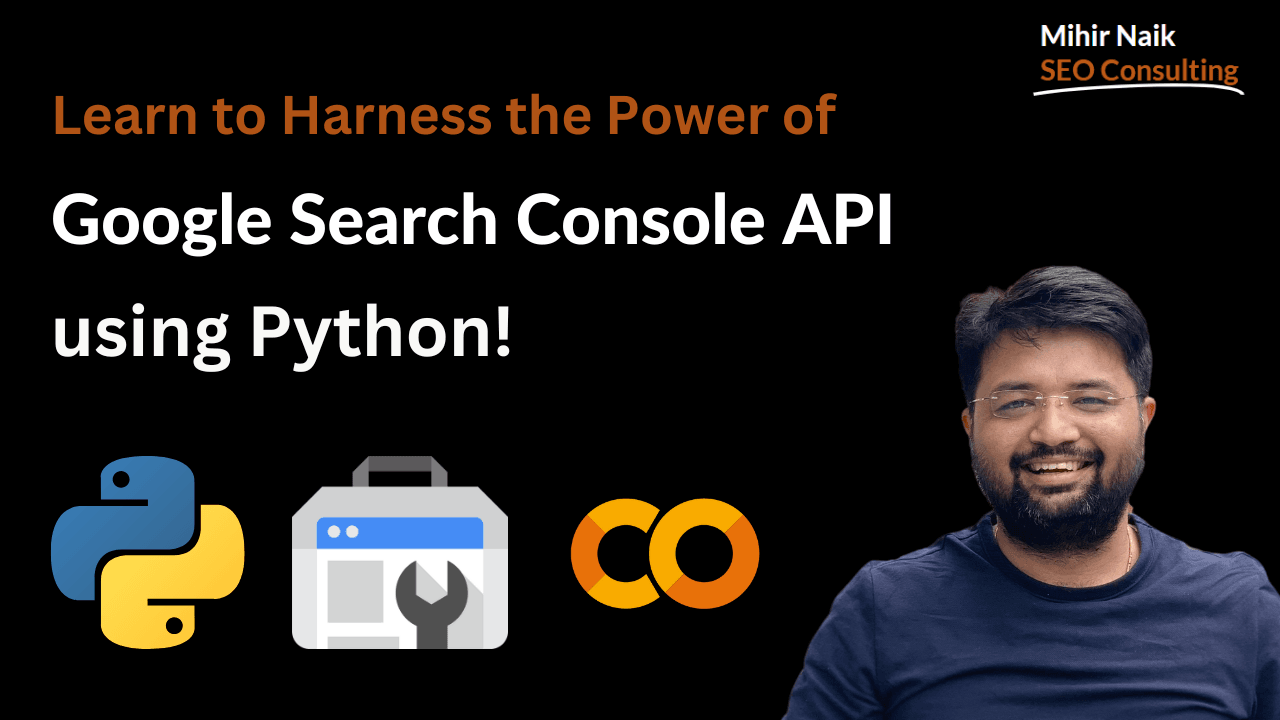
Google Search Console API x Python
Easy, Simple and Understandable Approach to SEO Data Analysis through in-depth Video Tutorials.
Check Videos! →⚙️
Automating SEO Workflows
1st Script automating Rankable Topics Identification from a Seed Keyword using SERP based Clustering.
YouTube Playlist →Selected work
Projects & tools
In 2021 I started focusing on developing my Python coding skills. I'm not an expert however I have been able to build something useful. I plan to add more things here.
CarryContext
Jan 2026
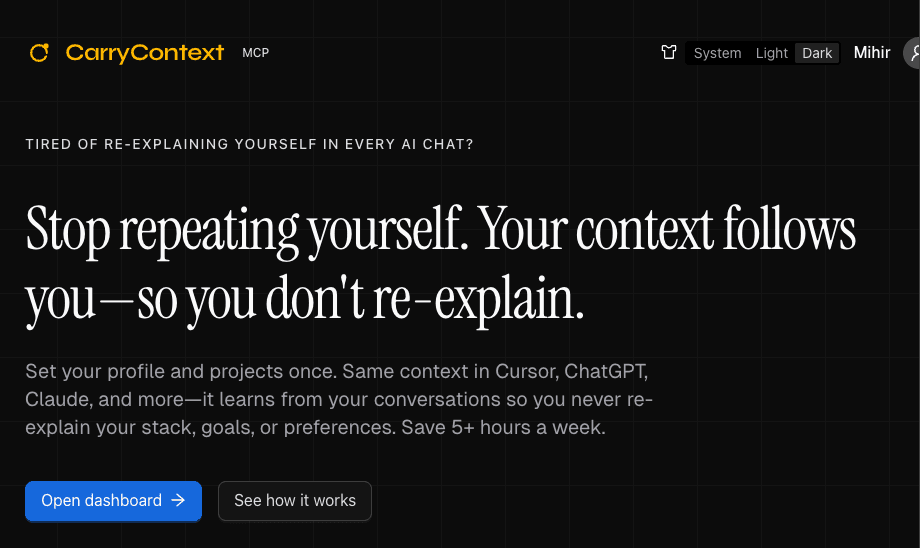
A web app that syncs your profile and project context to every AI tool you use. Set who you are and what you’re building once; the same context is available in Cursor, ChatGPT, Claude, VS Code, and others via MCP. It learns from your conversations and stays up to date so you don’t re-explain your stack, goals, or preferences.
Stack: Next.js, TypeScript, React, MCP (Model Context Protocol).
Get started free →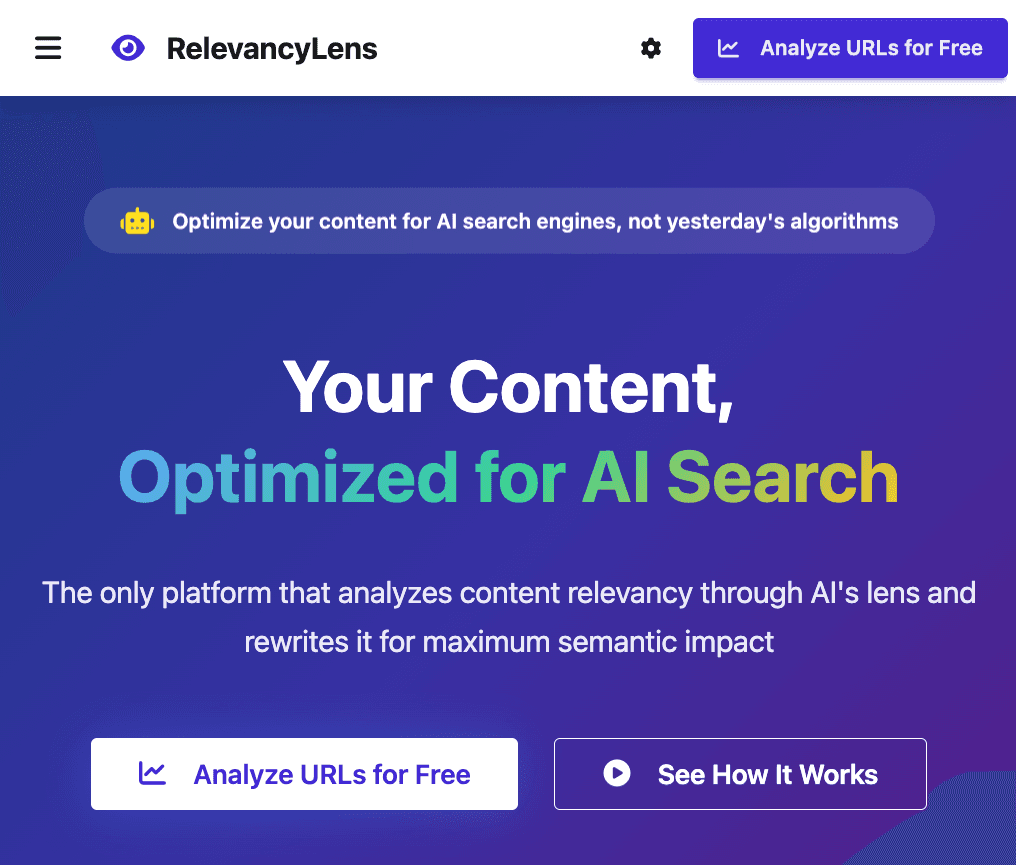
RelevancyLens
July 2025
AI-powered SEO analysis for modern search. Analyze content relevancy through AI's lens, get chunk-level insights, and optimize for AI search engines—no signup required.
Analyze URLs for Free →
GSCExplorer.app
Jun 2024
My first attempt of building an open-source web app that helps users with GSC Analysis and Reporting. Completely Free to Use.
Use for Free →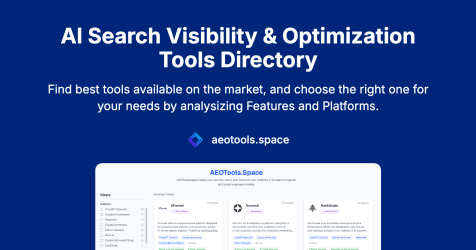
✨ AEOTools.Space
April 2025
AI Search Visibility Monitoring & Optimization space is evolving fast, new tools are coming to market every week, and SEOs will need a place to make sense of this market.
Learn More →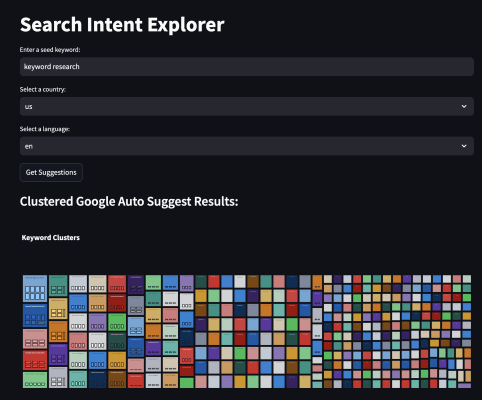
Search Intent Explorer
Mar 2025
Enter a Seed Keyword, and get Keyword Clusters for the Seed Topic.
Use for Free →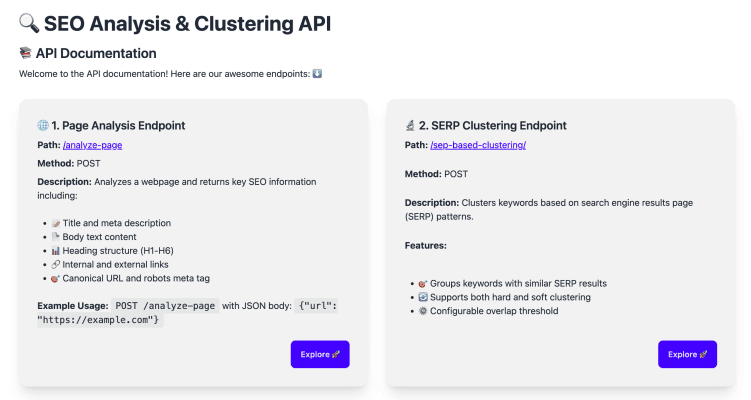
Useful SEO API
Dec 2024
Envisioning a single API with multiple endpoints that does most frequently used SEO tasks.
Learn More →
Scheduled Tab Opener
Chrome Extension
Schedule webpages to open automatically at set times and days. Automate your work dashboards, news sites, or routines—tabs open when you need them, no manual opening.
Get on Chrome Web Store →Consulting
Enterprise services
I work with select enterprise teams on specialized SEO challenges that require deep technical expertise and custom solutions.
View all services & FAQs →🔧
Enterprise Technical SEO at Scale
Large enterprise websites face technical SEO challenges that standard solutions can't solve. I help diagnose and fix crawl budget, indexing, JavaScript, and architecture issues that only appear at massive scale.
Contact
Get in Touch
Have a consulting project, speaking opportunity, or want to talk SEO strategy or AI search? Reach out and we'll see if it's a fit.
Recruiters: the fastest way to connect is LinkedIn. For everything else, drop a message below.